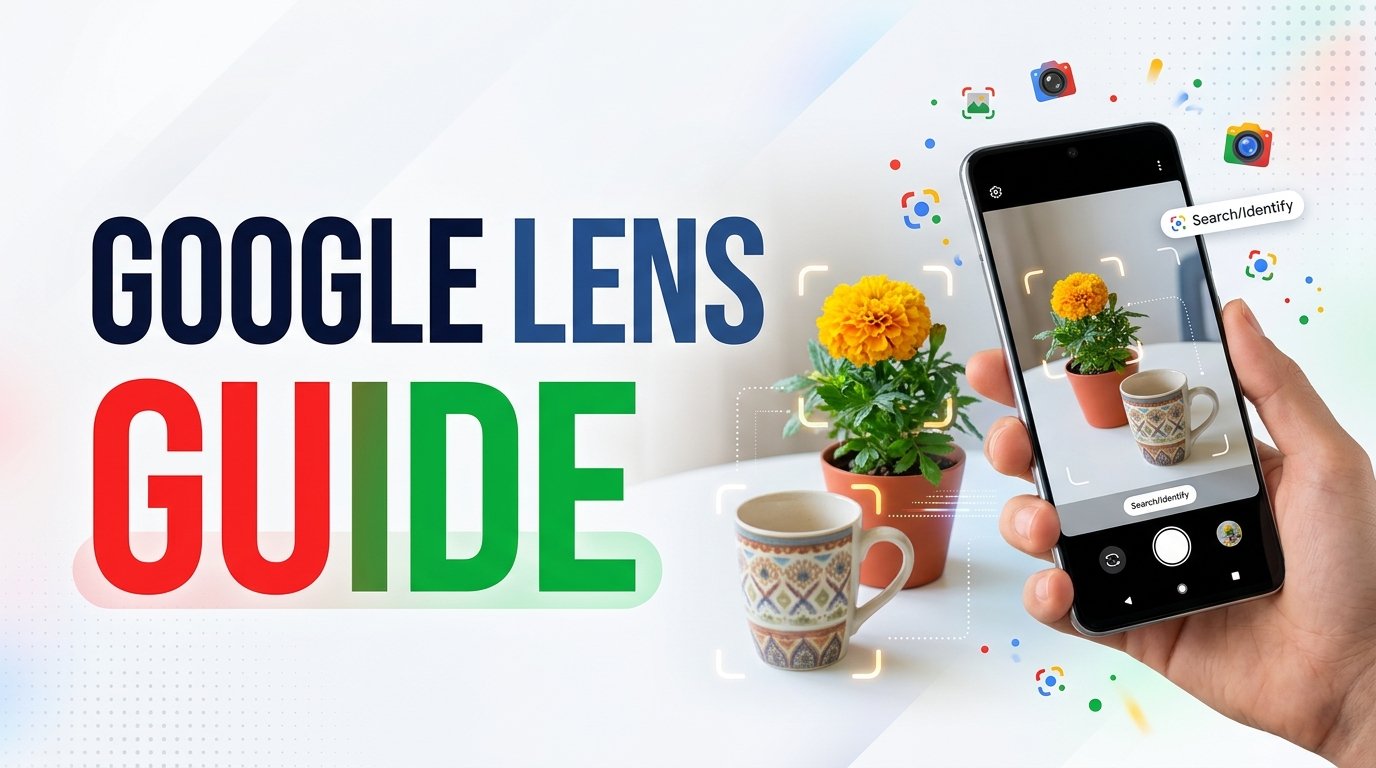
Have you ever seen a plant, product, landmark, or object and wondered what it was called? Or perhaps you wanted to copy text from a photograph without typing every word manually. Google Lens can help with these tasks by using your camera or existing images to search for relevant information.
Google Lens is an image-recognition tool that can analyze visual content and provide related search results. Depending on the image, device, language, and available features, it can help identify objects, recognize text, translate words, and find visually similar items.
In this ApkRaz4 guide, we will explain what Google Lens is, how to access it on Android, and how to use its main features safely and effectively.
What Is Google Lens?
Google Lens is a visual search tool developed by Google. Instead of relying only on words, it lets you search using an image captured by your phone’s camera or selected from your gallery.
For example, you can point your camera at a flower and search for similar plants. You can also use an image containing printed text to copy words, translate signs, or look for related information.
Google Lens is available through supported Google apps and devices. Its exact location and available functions may vary by Android version, region, language, and app updates.
How to Access Google Lens on Android
You may be able to access Google Lens through the Google app, Google Photos, or a dedicated Lens option, depending on your device.
To get started:
- Open the Google Play Store.
- Check that the Google app and other relevant Google apps are installed and updated.
- Open the Google app or another supported app.
- Look for the Lens icon.
- Allow camera access if required for live visual search.
- Point your camera at an object or select an existing image.
If you cannot find the Lens option, check the official Google app listing and your device’s compatibility. The interface may change after an update.
1. Identify Objects With Your Camera
One useful feature of Google Lens is its ability to search for information about objects.
Suppose you see a household item, flower, piece of furniture, or unfamiliar object. You can capture an image with Lens and review the visual search results.
To try it:
- Open Google Lens.
- Point your camera at the object.
- Keep the object clearly visible.
- Capture or select the image if prompted.
- Review the results and related information.
The results may include similar images, webpages, product listings, or descriptions.
Visual recognition is not always accurate. If Lens suggests an object or plant that does not match what you see, compare several sources before relying on the result.
2. Copy Text From Images
Typing long paragraphs from printed material can take time. Google Lens can recognize text in many images and let you select or copy it.
This may be helpful when working with signs, printed notes, menus, or documents.
To use text recognition:
- Open Lens and capture an image or select one from your gallery.
- Choose the text-related option when available.
- Wait for Lens to identify the words.
- Select the required text.
- Choose Copy or another available action.
Review the copied text before using it. Text recognition can make mistakes with blurry photographs, unusual fonts, handwritten notes, or low-light images.
Also, make sure you have permission to copy or reuse material when copyright or privacy rules apply.
3. Translate Text From Signs and Documents
Google Lens can help translate text in supported languages. This can be useful when traveling or reading a sign, menu, label, or printed notice in a language you do not understand.
Open Lens, point it at the text, and look for the Translate option. Select the relevant languages if the interface asks you to do so.
The translation may appear over the image or in another supported display format.
For best results, take a clear photograph with the words fully visible. Translation quality can vary, especially for technical terminology, idioms, small print, and complex sentences.
For legal, medical, or other important documents, use a qualified translator when accuracy is essential.
4. Search for Similar Products
Google Lens can help you find visually similar products from an image. For example, you may want to identify a backpack, pair of shoes, chair, or decorative item.
Capture the item or select a photograph, then review the related visual search results.
Results may include product pages, retailer listings, and similar images. Availability and prices can differ between sellers and locations.
Before purchasing anything, verify the exact product model, specifications, seller reputation, delivery terms, and return policy. Similar-looking products are not necessarily identical.
Do not assume that the first result is the original product or the best deal.
5. Learn About Plants and Animals
If you encounter an unfamiliar plant or animal, Google Lens may help you find possible matches.
Take a clear photograph and search using Lens. Try to capture distinguishing details, such as leaf shape, flower structure, or other visible features.
The results can provide a useful starting point for further research. However, visual identification can be wrong, especially when different species look alike.
Never eat an unfamiliar plant or mushroom based only on a visual search result. If identifying a potentially dangerous animal or plant is important for safety, consult a qualified local expert.
6. Explore Landmarks and Places
Google Lens can search for information related to buildings, monuments, and other recognizable locations.
This can be useful while traveling. You may photograph a landmark and search for its name, history, or related webpages.
Results depend on the quality of the image and the information available online. Similar-looking buildings or limited visual details can produce incorrect matches.
For more reliable information, compare Lens results with official tourism websites, museum resources, or other trustworthy sources.
7. Use Google Lens With Existing Photos
You do not always need to take a new photograph. In supported apps, you can select an image already stored on your phone.
For example, you might have a photograph of a product, a sign, or a page of printed text. Open a supported Google app, select the image, and look for the Lens option.
The available tools depend on the app and image. You may be able to recognize text, search for similar objects, or find related information.
Before selecting an image, consider whether it contains private details. Avoid uploading or searching sensitive documents unless you understand the relevant privacy implications.
8. Improve Your Search Results
A few simple techniques can help Google Lens produce more useful results.
Use clear images: Blurry images make object recognition and text extraction more difficult.
Focus on the subject: Keep the main object visible and avoid unnecessary background details.
Improve lighting: Good lighting helps Lens analyze small details.
Try another angle: If the first result is incorrect, capture the object from a different angle.
Compare results: Do not rely on a single match when accuracy matters.
Check reliable sources: Use official websites or trusted references to verify important information.
These steps will not guarantee a correct result, but they can improve the quality of your visual searches.
9. Review Privacy and Camera Permissions
Google Lens may need camera access for live visual searches. When you select an existing image, the relevant app may also need access to that image.
On Android, you can review application permissions through your phone’s Settings. Open Apps, select the relevant Google app, and review its permissions. Menu names vary by device.
Only grant permissions you are comfortable with and that are needed for the features you use.
Before searching, check whether your image includes faces, identification documents, addresses, private messages, or other sensitive information. Think carefully before uploading or sharing such images.
10. Is Google Lens Free?
Google Lens has generally been available as a free visual search feature through supported Google services. However, access and individual functions can vary by device, region, language, and app version.
Some search results may lead to commercial websites or paid products. The visual search feature itself does not mean that the products or services shown are free.
Check the official Google app information for the current compatibility and feature details for your device.
Frequently Asked Questions
Can Google Lens identify objects?
Yes. It can search for information about many objects using images, although results are not always accurate.
Can Google Lens copy text from a photograph?
Yes. Text recognition is available for many supported images. Always check the copied words for errors.
Can Google Lens translate signs?
Yes. It supports visual translation for many languages, but translation quality can vary.
Can I use Google Lens with pictures in my gallery?
Yes. Supported Google apps may let you select existing images and search with Lens.
Does Google Lens always identify plants correctly?
No. It can suggest possible matches, but visual identification is not guaranteed. Verify important identifications with reliable sources.
Conclusion
Google Lens makes visual search more convenient by helping Android users explore objects, recognize text, translate supported languages, and find visually similar products. It can be especially useful when you do not know the right words to describe what you are searching for.
For the best results, use clear images, review multiple results, and verify important information before acting on it. Be mindful of privacy when searching with personal photographs or documents.
Visit ApkRaz4 for more Android app guides, mobile tutorials, and useful technology tips.