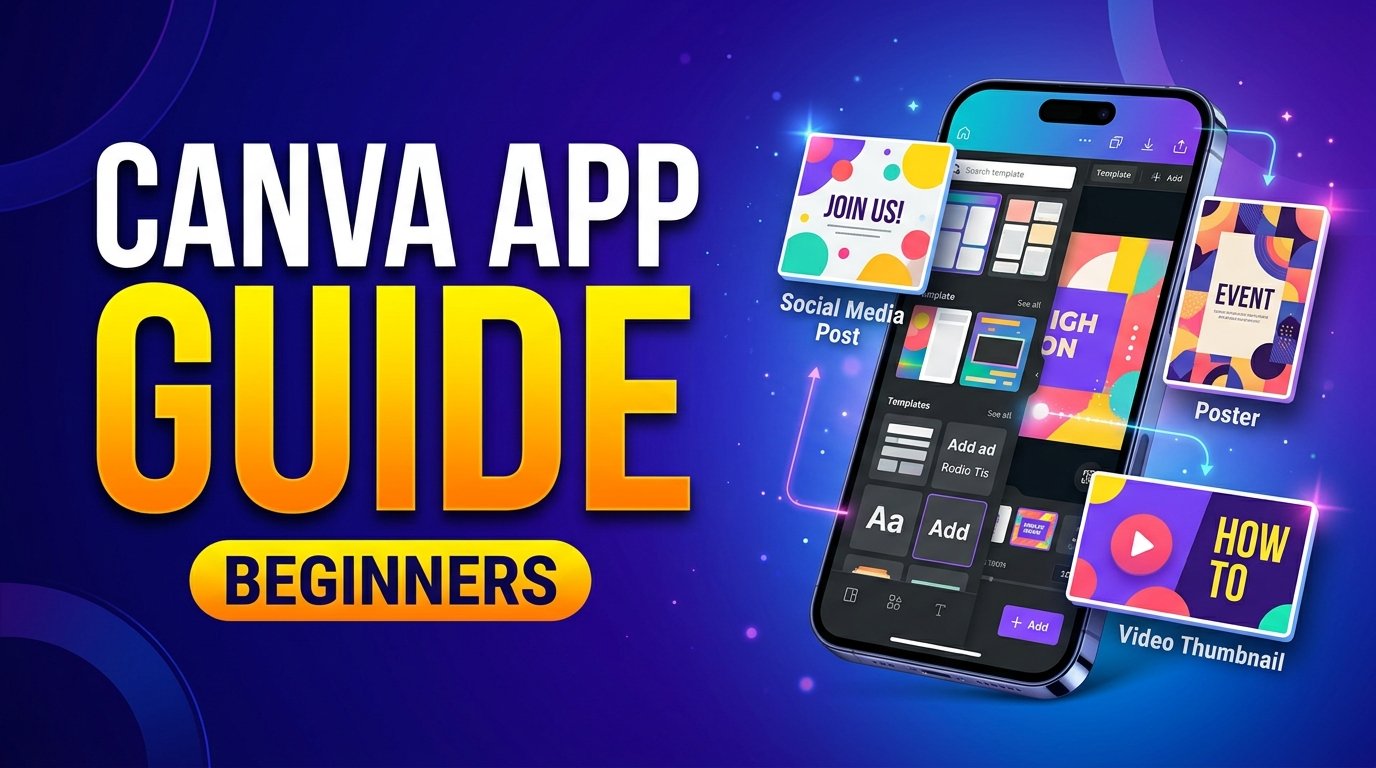
Creating attractive designs is no longer limited to professional graphic designers. Today, smartphone users can make social media posts, YouTube thumbnails, posters, invitations, and presentations directly from their phones. One popular tool for this purpose is Canva.
The Canva app provides templates and simple editing tools that help beginners create visual content without learning complicated design software. Whether you are a student, content creator, small business owner, or social media manager, Canva can help you prepare designs for different purposes.
In this guide, ApkRaz4 explains what Canva is, how to use it on Android, its useful features, and some practical tips for creating better designs.
What Is Canva?
Canva is a graphic design platform available through its website and mobile applications. It offers ready-made templates, text tools, images, illustrations, shapes, and other design elements.
Instead of starting with a blank page, beginners can select a template and customize it. You can change its text, colors, background, images, and layout to match your needs.
Canva offers both free and paid features. The exact tools and content available depend on your account and subscription plan.
How to Download Canva on Android
Before creating your first design, install the official Canva app.
Follow these steps:
- Open the Google Play Store on your Android phone.
- Search for Canva.
- Check the app publisher to make sure you select the official application.
- Tap Install.
- Open Canva and sign in or create an account.
You can also access Canva through its official website using a browser.
Avoid downloading modified applications from unknown websites. Unofficial apps may create security risks or expose personal information.
1. Create Your First Design
After opening Canva, you can choose the type of design you want to create. Common options include Instagram posts, Facebook covers, posters, presentations, invitations, and video thumbnails.
To begin:
- Open Canva and sign in.
- Search for the design type you need.
- Select a suitable template or start with a blank design.
- Customize the text, colors, images, and other elements.
- Preview the final result.
- Download or share your design using the available options.
Choose the correct design format before editing. A square social media post and a wide video thumbnail have different dimensions, so one design may not fit every platform properly.
2. Use Ready-Made Templates
Templates are especially useful for beginners because they provide an initial layout. They can help you understand where to place headings, images, supporting text, and decorative elements.
For example, if you want to create a YouTube thumbnail, search for YouTube thumbnail templates. If you need a business poster, look for poster templates.
After selecting a template, replace the original text and images with your own content. Adjust the colors and spacing so the final design looks consistent with your brand.
Always check the usage terms for any template, image, or graphic you plan to use commercially. Not every element is necessarily available under the same license.
3. Add and Edit Text
Text is an important part of many designs. Canva allows you to add headings, subtitles, captions, and other text elements.
To improve readability:
- Use a clear font for the main heading.
- Keep important text short.
- Make the headline larger than supporting text.
- Use contrasting text and background colors.
- Leave enough space around each text element.
For thumbnails, a short headline is often easier to read than a long sentence. For example, “5 Android Tips” may work better visually than a paragraph describing the same topic.
Avoid using too many different fonts in one design. Two complementary font styles are often enough for a clean layout.
4. Add Photos, Icons, and Backgrounds
Canva provides tools for adding images, shapes, icons, and backgrounds. These elements can help explain the purpose of your design and make it more visually appealing.
You can upload your own photos or select from the content available within Canva. Depending on your account, some assets may require a paid subscription.
When adding images, choose visuals that match the topic. A smartphone image is suitable for a mobile app guide, while a food photograph would be more appropriate for a recipe post.
Avoid placing too many decorative elements on the page. A simple design with one clear subject often communicates the message more effectively than a crowded layout.
5. Design YouTube Thumbnails
YouTube thumbnails help viewers understand what a video is about before clicking. Canva offers thumbnail templates that you can customize for your channel.
For better results:
- Select a YouTube thumbnail design.
- Add a relevant image or illustration.
- Write a short headline.
- Use strong contrast between text and background.
- Keep the most important elements easy to see on a phone.
- Preview the thumbnail at a smaller size.
Use accurate text and images that reflect the actual video. Avoid misleading claims or visuals that promise something the content does not provide.
If you create technology videos for ApkRaz4, you can maintain a consistent visual identity by using similar fonts, colors, and logo placement across your thumbnails.
6. Create Social Media Posts
Canva can also help you prepare graphics for social media accounts. You can create announcements, educational posts, promotional graphics, story designs, and quote cards.
Start by selecting the appropriate format for your platform. Then choose a layout that supports your message.
For example, a mobile technology post might include:
- A short headline about the app or feature.
- One relevant smartphone image.
- Two or three brief supporting points.
- Your website or brand name.
Keep the text readable and avoid putting essential information too close to the edges. Different platforms may crop or display content differently.
7. Make Posters and Presentations
Students and professionals can use Canva to create class presentations, event posters, business announcements, and informational graphics.
For presentations, use a consistent layout throughout the slides. Each slide should focus on one main idea rather than containing too much text.
For posters, make the event name or main message prominent. Include supporting details such as the date, time, location, or contact information when relevant.
Before sharing a design, check spelling, dates, links, and other important details. Small mistakes can make an otherwise professional design look unfinished.
8. Download and Share Your Design
When your design is ready, use Canva’s download or sharing options.
The available formats may include PNG, JPG, PDF, and other options depending on the design and account features.
Choose the format based on how you intend to use the file:
- PNG: Useful for graphics where clear text and sharp edges matter.
- JPG: Suitable for many photographs and general-purpose images.
- PDF: Often useful for printable documents and multipage designs.
Check the exported file before uploading it to your website or social media account. Confirm that the text is readable and that no important element has been cut off.
Some download options, premium assets, or advanced features may require a paid plan.
9. Useful Canva Tips for Beginners
You do not need advanced design skills to create useful graphics. A few simple habits can improve your results.
Keep your layout simple: Choose one main subject and one clear message.
Use consistent colors: Select a small color palette and reuse it across related designs.
Check mobile readability: Many people view social media posts on small screens, so test your design at a reduced size.
Use original content: Add your own ideas, images, and wording where possible rather than simply copying another creator’s design.
Save your work: Keep your designs organized so you can update them later.
Review licensing: Check the terms for images, fonts, templates, and other assets before using them commercially.
Is Canva Free to Use?
Canva offers a free plan with a range of design tools and templates. It also offers paid plans that may include additional content, features, and collaboration tools.
For beginners, the free version may be sufficient for basic social media posts, posters, and simple thumbnails. Before subscribing, review the current plan details and confirm that the features you need are included.
Frequently Asked Questions
Can I use Canva on an Android phone?
Yes. Canva has an Android app, and you can also use its website through a compatible mobile browser.
Can beginners use Canva?
Yes. Ready-made templates and simple editing tools make Canva accessible to people who have little or no graphic design experience.
Can I create YouTube thumbnails with Canva?
Yes. You can select a YouTube thumbnail template or create a design using the appropriate dimensions.
Can I use Canva designs commercially?
Some designs and assets can be used commercially, but the applicable license terms matter. Review the rules for the specific content you use, especially for logos, trademarks, and items intended for resale.
Does Canva require an internet connection?
Many Canva features rely on an internet connection, particularly when accessing online templates and content. Availability of specific functions may vary.
Conclusion
Canva is a useful design tool for beginners who want to create social media posts, YouTube thumbnails, posters, presentations, and other visual content from an Android phone.
Start with a template, keep your layout simple, choose readable fonts, and use images that match your topic. With practice, you can develop a consistent style for your website or social media brand.
For more Android app guides, smartphone tips, and technology tutorials, visit ApkRaz4.