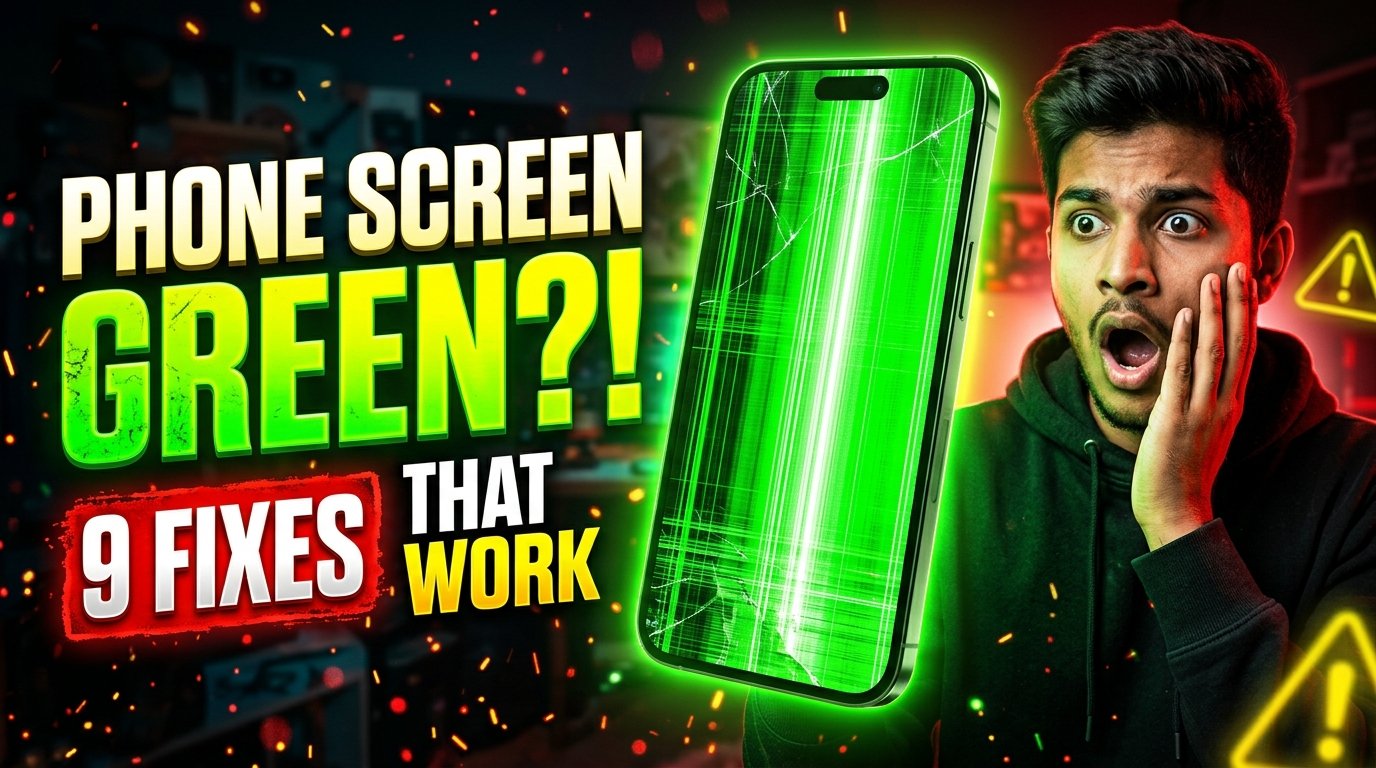
Have you ever unlocked your smartphone and suddenly noticed a green tint, a bright green line, or an unusual green glow across the display? This problem can be worrying, especially when your phone was working normally just a few minutes earlier.
The green light on a phone screen can appear on Android phones and iPhones. Sometimes it is only visible when brightness is low, while in other cases, the entire screen may turn green or begin flickering. The phone might still receive calls, play sounds, and respond to touch even when the display looks abnormal.
There is no single cause for every green screen problem. It may be related to display settings, a software bug, physical damage, moisture, or a failing screen component. This guide explains the possible causes and practical troubleshooting steps you can try before paying for a repair.
What Does a Green Light on a Phone Screen Mean?
A green phone display usually refers to an abnormal green tint, green lines, flickering, or discoloration appearing on the screen.
The appearance of the problem can provide useful clues:
- Green tint across the screen: The display may have a color calibration issue or hardware fault.
- One or more vertical green lines: The display panel or its connections may be damaged.
- Green flickering at low brightness: The problem may involve display behavior, software, or the screen hardware.
- A completely green screen: The phone may have a serious display or internal hardware issue.
- Green patches after a drop: Physical damage is a possible cause.
These symptoms do not always identify the exact fault. A technician may need to inspect the phone to determine whether the display panel, connection, or another component is responsible.
7 Common Causes of a Green Phone Screen
1. OLED or AMOLED Display Problems
Many modern smartphones use OLED or AMOLED displays. These screens produce colors using pixels that emit their own light.
If the display panel develops a fault, you may notice abnormal colors, green lines, flickering, or patches. Some display problems become more noticeable at particular brightness levels.
If the green tint appears repeatedly and does not disappear after restarting the phone, the screen itself may need professional inspection.
2. Software Bugs or System Updates
A software update can sometimes coincide with display problems. Possible causes include a system bug, graphics driver issue, or display calibration problem.
If the green screen appeared immediately after an update, check whether another official update is available for your device.
Avoid installing unofficial firmware or attempting complicated system modifications unless you fully understand the risks.
3. Physical Damage
A phone does not need to have a completely shattered screen to suffer internal display damage. A hard impact, bending, or pressure against the display may affect components beneath the glass.
If the green line appeared after dropping your phone, a hardware fault becomes more likely. Restarting or changing settings generally cannot repair a physically damaged panel.
4. Water or Moisture Damage
Moisture can affect internal connectors and electronic components. Green discoloration or flickering that begins after contact with water should be treated seriously.
If your phone becomes wet, switch it off if safe to do so, disconnect the charger, and do not charge it while it may still be wet. Seek professional advice, particularly if the phone has been submerged or is behaving unusually.
Do not use a hair dryer or apply direct heat to dry the device.
5. Display Cable or Connector Fault
A smartphone’s display connects to internal electronics through delicate components and connectors. An impact, previous repair, or internal fault may affect this connection.
Possible symptoms include intermittent green lines, flickering, or a display that changes when the phone is moved.
Do not open the phone or press hard on the screen to test it. Internal repairs should be handled by a qualified technician.
6. Overheating
High temperatures can affect smartphone performance and may aggravate existing hardware problems. Heavy gaming, demanding applications, direct sunlight, or charging in a hot environment can cause a device to become unusually warm.
Let the phone cool naturally in a shaded, well-ventilated place. If it repeatedly overheats or shows other signs of damage, stop using it and arrange an inspection.
7. Manufacturing or Component Defects
Sometimes a display develops a fault even when the phone has not been dropped or exposed to water.
If the device is under warranty, check the manufacturer’s support and repair policy. Warranty coverage depends on the device, region, and cause of the fault.
9 Ways to Fix the Green Light on Your Phone Screen
Try these troubleshooting steps in order. If the display is severely damaged, the phone is overheating, or moisture is suspected, skip software troubleshooting and seek professional help.
1. Restart Your Phone
A restart is a simple first step if the problem is caused by a temporary software glitch.
- Save any work that is open.
- Restart your phone using its normal power menu.
- Wait for the device to start completely.
- Check whether the green tint or flickering remains.
A restart may resolve a temporary issue, but it will not repair physical screen damage.
2. Adjust the Screen Brightness
If the green tint appears mainly when the brightness is low, test a few different brightness levels.
Open the quick settings panel and gradually increase the brightness. Then check whether the green tint changes.
You can also temporarily turn off adaptive brightness or automatic brightness to see whether the display behaves differently.
If the issue occurs consistently at certain brightness levels, note that information for a repair technician. Do not assume that increasing brightness has permanently fixed the problem.
3. Check the Display Settings
Some phones offer display options that change colors and screen appearance.
Look for settings such as:
- Screen color mode or color profile
- Eye comfort or blue-light filter
- Night Light
- Color correction
- Extra dim
- Refresh rate
The names and availability of these options vary by phone.
Temporarily return relevant display settings to their normal defaults and check the screen again. If you use accessibility color filters, remember that changing them may affect the appearance of the entire interface.
4. Install Official Software Updates
If the issue is software-related, an official update may help.
On Android, open Settings and look for System Update or Software Update. On an iPhone, open Settings, select General, and check Software Update.
Menu names may vary by device.
Back up important data before a major update and use a reliable power source and internet connection. If the phone has a severe hardware problem, an update is unlikely to solve it.
5. Check Whether a Third-Party App Is Responsible
An app may affect the screen’s appearance through overlays, filters, or accessibility features.
If your Android phone supports Safe Mode, you can use it to temporarily disable most downloaded apps. Follow the manufacturer’s instructions for entering and leaving Safe Mode.
If the green effect disappears in Safe Mode, review recently installed apps and display utilities. This is a clue, not proof, that an app caused the problem.
iPhones do not provide the same general-purpose Safe Mode feature for ordinary users, so review recently changed settings and installed apps instead.
6. Take a Screenshot
A screenshot can help you distinguish between some software issues and physical display problems.
Take a screenshot while the green tint is visible. If possible, view that screenshot on another phone or computer.
- If the screenshot also appears green on the other device, the issue may involve the displayed image or software.
- If the screenshot looks normal on another device while your phone’s physical screen remains green, a display hardware or calibration issue becomes more likely.
This test is not definitive, but it can provide useful information.
7. Back Up Your Important Data
If the screen is becoming worse, back up your photos, contacts, documents, and other important files while the phone remains usable.
Use a trusted backup service, a computer, or another supported method. Confirm that important files have actually been saved before proceeding with more disruptive troubleshooting.
If the display becomes unreadable or the phone stops responding, professional repair may be needed to regain access to your data.
8. Consider a Factory Reset Only as a Last Resort
A factory reset erases data stored on the device and returns it to its initial software state. It may help with certain persistent software problems, but it cannot repair a damaged OLED or AMOLED panel.
Before resetting, make sure you have a complete backup and know the account credentials needed to set up the phone again.
If the green screen began after a drop, liquid exposure, or visible display damage, a factory reset is unlikely to be the right solution. Seek a professional diagnosis first.
9. Visit an Authorized Repair Center
If green lines, flickering, or discoloration continue after basic troubleshooting, have the phone inspected by a qualified repair provider.
A technician can check whether the fault involves the display panel, connector, or another internal component.
Ask for a diagnosis and repair estimate before approving work. If your phone is under warranty, contact the manufacturer first because unauthorized repairs may affect warranty coverage.
Can You Fix a Green Phone Screen Without Replacing It?
Yes, sometimes. If the cause is a temporary software problem or an incorrect display setting, restarting the device or changing the relevant setting may resolve it.
However, a physically damaged display generally needs repair or replacement. A damaged connector or another internal fault may require a different repair.
The most important step is identifying the likely cause instead of repeatedly trying random settings or applications.
Is a Green Phone Screen Dangerous?
The green color itself does not automatically mean the phone is dangerous. However, it may indicate a display fault, and the cause matters.
If the phone becomes unusually hot, its battery swells, you notice a burning smell, or the device appears physically damaged, stop using it and do not charge it. Seek qualified assistance.
A green screen can also make it difficult to read messages, use navigation, or access important information, so back up your data when possible.
How Much Does Green Screen Repair Cost?
There is no universal repair price. The cost depends on the phone model, display technology, availability of parts, labor charges, and whether additional components are damaged.
A replacement screen for a premium OLED phone may cost considerably more than a basic LCD screen. Request a quote from a reputable repair center and ask whether the replacement part is original or third-party.
Do not choose a repair provider based on price alone. Check the warranty on the repair and clarify whether the quoted amount includes labor.
Frequently Asked Questions
Why is my phone screen green but the phone still works?
The phone’s internal system may still be operating even though the display has developed a fault. The cause could be software, display calibration, or hardware damage.
Why does the green tint appear only at low brightness?
Some display issues become more visible at low brightness. Adjusting the brightness may change the symptom, but persistent discoloration should be investigated.
Can a software update fix green lines?
It may help if a software bug is responsible. Green lines caused by physical panel damage generally require professional repair.
Will replacing the screen solve the problem?
If the display panel is faulty, replacing it often resolves the issue. If the problem comes from another component, additional diagnosis may be necessary.
Should I keep using my phone if the screen is green?
If the phone is cool, functions normally, and shows no signs of physical or battery damage, you may be able to back up your data and arrange a repair. Stop using and charging it if it becomes unusually hot, the battery swells, or liquid damage is suspected.
Final Thoughts
A green light on a phone screen can result from several different problems, including software glitches, display settings, physical damage, or a failing screen panel. Start with simple troubleshooting steps such as restarting the phone, checking display settings, and installing official updates.
If the problem persists, back up your data and seek a professional diagnosis rather than relying on unverified repair apps or risky instructions.
For more Android troubleshooting guides, smartphone tips, and technology tutorials, keep visiting ApkRaz4.
Disclaimer: This article is for general informational purposes. Troubleshooting steps vary by device, and hardware repairs should be performed by a qualified professional.