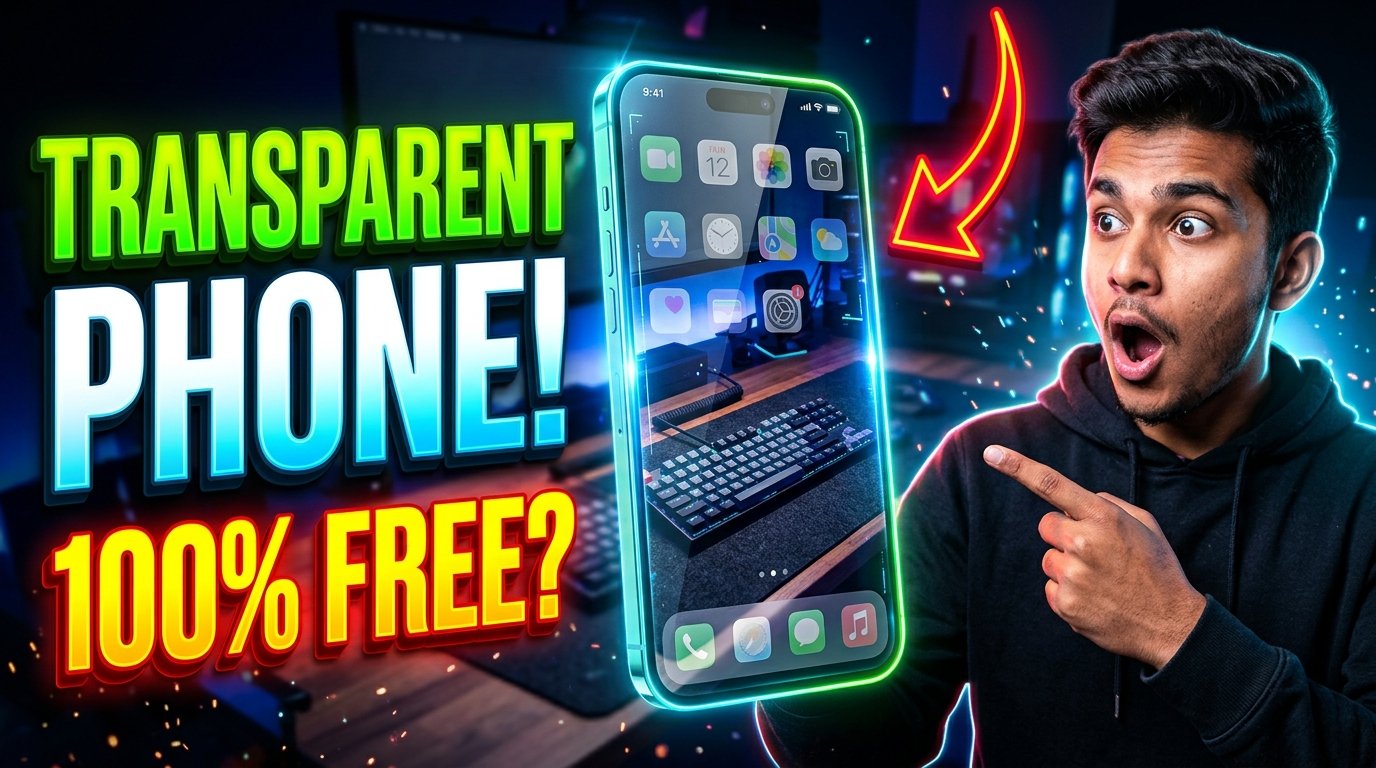
Have you ever seen a smartphone that appears completely transparent, as if you can see through the display? This futuristic effect looks amazing in technology videos and social media reels. The good news is that you can create a similar visual effect on many smartphones without buying a special device.
A transparent phone screen app uses your phone’s camera to create the illusion of a see-through display. When you move your phone, the background shown on the screen changes with the camera view, making the effect look more realistic.
In this guide, ApkRaz4 explains how transparent screen apps work, how to set them up on Android, what to know about iPhones, and how to use these apps safely.
What Is a Live Transparent Phone Screen?
A live transparent phone screen is a visual effect that makes your smartphone display look as though it is made of clear glass.
Your phone’s screen is not actually transparent. Instead, a compatible app uses the camera to show a live view of the area behind the device. When this camera view appears as a wallpaper, the screen can look as though you are seeing through the phone.
For example, if you point your phone toward a table, the camera captures the table and displays the view behind your app icons. Moving the phone changes the camera image, creating the illusion of a transparent screen.
This effect is mainly used for entertainment, phone customization, and creating interesting social media videos.
How Does a Transparent Phone Screen App Work?
Most transparent screen applications rely on a simple combination of camera access and live display effects.
The process generally works like this:
- The app requests permission to access the camera.
- It displays the live camera feed inside the app or through a supported wallpaper feature.
- The camera image creates the appearance of a see-through screen.
- Depending on the app and device, you may be able to use the effect as a wallpaper or only while the app is open.
Not every application supports a live wallpaper that remains visible behind home-screen icons. Android versions, manufacturer restrictions, and app capabilities can affect the result.
How to Get a Transparent Phone Screen on Android for Free
Follow these steps to try the effect on a compatible Android phone.
Step 1: Open the Google Play Store
Open the Google Play Store on your smartphone. Search for terms such as “transparent screen live wallpaper” or “transparent camera wallpaper.”
Compare available apps instead of installing the first result. Review the developer’s name, recent user feedback, update history, and privacy policy.
Step 2: Choose a Suitable App
Select an application that clearly explains how its transparent effect works.
Some apps display the camera feed only inside the app, while others offer a live wallpaper option. Check the description to make sure it supports the feature you want.
Prefer apps with a clear privacy policy and no unnecessary permission requests.
Step 3: Install and Open the App
Install the selected app from the trusted app store and open it.
Look for options such as “Start,” “Transparent Screen,” “Live Wallpaper,” or “Set Wallpaper.” The exact wording will vary between applications.
Step 4: Allow Camera Permission
If the app needs a live camera feed, Android will ask for camera permission.
Grant access only if you understand why the app needs it. If you deny camera access, the live transparent effect will usually not work.
Remember that camera access can expose whatever the camera sees. Avoid using the effect where you might unintentionally record or display private surroundings.
Step 5: Activate the Transparent Effect
Follow the instructions provided by the app. If it supports live wallpaper, choose the wallpaper option and confirm the selection when Android displays the relevant menu.
If the app only supports an in-app effect, you may need to keep the application open to see the camera view.
Step 6: Test Your Screen
Move your phone slowly and observe how the background changes. Adjust the camera angle to create a more convincing effect.
If your home screen does not become transparent, check whether the app actually supports live wallpapers on your device. Some applications provide only a preview or a camera effect inside the app.
Can You Get a Transparent Phone Screen on an iPhone?
You can try camera-based transparent effects on an iPhone, but the experience may differ from Android.
Apple restricts how third-party apps interact with the home screen and wallpaper system. As a result, an application may show a transparent effect inside the app without being able to maintain a continuous camera feed behind home-screen icons.
To try the effect, open the Apple App Store and search for transparent camera effects or transparent wallpaper apps. Check the app description and recent reviews before installing one.
Do not assume that every feature demonstrated on Android will also work on iOS.
Is a Transparent Phone Screen App Really Free?
Some transparent screen apps are free to download and use, but their business models differ.
An app may include advertisements, optional purchases, subscriptions, or paid themes. Some features may be free while others require payment.
Before installing an app, check its current store listing for:
- In-app purchases
- Subscription requirements
- Advertisements
- Premium themes
- Camera permission requirements
Avoid websites that promise a special transparent-screen APK but ask you to disable your phone’s security protections. You do not need to root your phone to try a basic camera-based visual effect.
Benefits of Using a Transparent Screen Effect
A Futuristic Appearance
The transparent effect gives your smartphone a distinctive look and can make an ordinary device appear more futuristic.
Useful for Social Media Videos
Creators can use the effect in phone customization videos, demonstrations, and entertaining short clips. A well-framed camera view can make the illusion more convincing.
No Special Hardware Required
You do not need a physically transparent display. The effect is generated by software using the phone’s existing camera and screen.
Easy to Disable
On compatible devices, you can usually return to your normal wallpaper by selecting another wallpaper or disabling the app’s effect.
Important Limitations to Know
Although the effect looks interesting, it has several limitations.
It is not real transparency: The screen is displaying a camera image rather than allowing light to pass through the display.
Battery consumption may increase: Keeping the camera active and displaying a live feed can use more power than a static wallpaper.
The phone may become warm: Prolonged camera use can increase device temperature, particularly on older or less powerful phones.
Compatibility varies: Some apps work only inside their own interface and cannot create a full home-screen effect.
The camera view has limitations: The effect depends on camera position, lighting, and what is visible behind the phone.
Is It Safe to Use a Transparent Screen App?
Safety depends on the application and its developer. Because these apps may use your camera, privacy should be a priority.
Follow these precautions:
- Download apps from reputable app stores.
- Read the privacy policy and review the requested permissions.
- Deny access that is not needed for the feature.
- Avoid installing modified APK files from unknown sources.
- Disable the effect when you no longer need it.
- Uninstall the app if it behaves suspiciously or causes persistent overheating.
Do not use a camera-based effect in private spaces where capturing the surroundings could expose sensitive information.
Troubleshooting: Why Is the Transparent Screen Not Working?
The App Shows a Black Screen
Check whether camera permission is enabled. Close other applications that may be using the camera, then reopen the app.
The Wallpaper Does Not Appear
Check whether the app supports live wallpaper on your phone. Some applications show the effect only while they are open.
The Phone Battery Drains Quickly
Disable the effect when it is not needed. A continuously active camera feed can use more energy than a regular wallpaper.
The Phone Becomes Hot
Stop the effect and allow the phone to cool naturally. If overheating continues, uninstall the app and check whether other applications or hardware problems may be contributing.
The App Requests Too Many Permissions
A basic transparent camera effect should have a clear reason for requesting camera access. If the app requests unrelated sensitive permissions without a convincing explanation, do not grant them.
Frequently Asked Questions
Does a transparent phone screen app make the display physically transparent?
No. It creates an illusion using the camera feed. The physical display remains unchanged.
Can I use a transparent screen without paying?
Some apps offer a free version. However, advertisements, paid themes, and subscription features may vary by app.
Does the effect work on every Android phone?
Not necessarily. Compatibility depends on the phone, Android version, and the application’s features.
Does a transparent screen app damage the phone?
The visual effect does not physically transform the screen. However, continuous camera use can increase battery consumption and device temperature.
Do I need to root my phone?
A basic camera-based transparent effect generally does not require rooting. Avoid apps that ask you to weaken device security to enable a simple visual feature.
Final Thoughts
A live transparent phone screen is a fun way to customize your smartphone without purchasing special hardware. With a compatible camera-based app, you can create the illusion of a see-through display and use it for entertainment, customization, or social media content.
For the best experience, choose a reputable app, review its camera permissions, and check whether it supports a live wallpaper on your particular device. Keep in mind that the effect is created by software and may increase battery consumption.
For more Android tips, useful app guides, and smartphone customization tutorials, keep visiting ApkRaz4.
Disclaimer: App availability, pricing, permissions, and compatibility may change. Always check the current app listing and privacy policy before installation.